AWS VPC Troubleshooting: 10 Common Networking Problems and Fixes
Troubleshoot common AWS VPC networking problems including unreachable EC2 instances, security groups, NACLs, route tables, NAT Gateway, DNS, internet connectivity, and VPC peering issues.
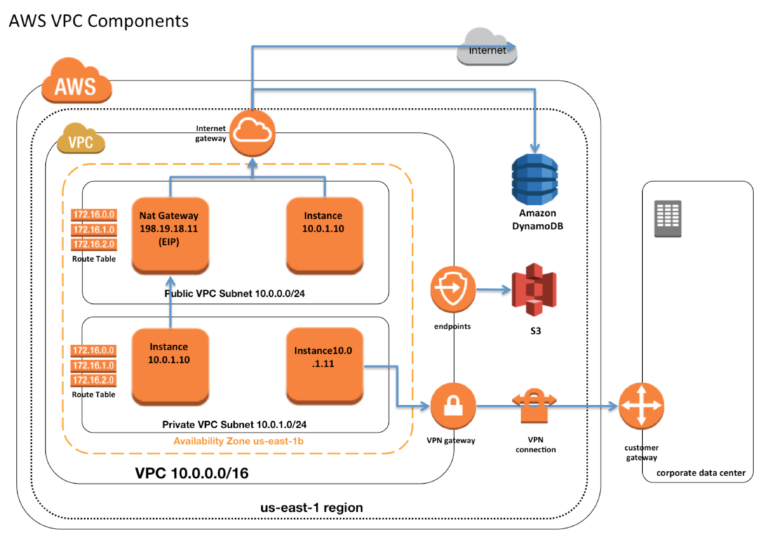
AWS networking problems can be difficult to troubleshoot because traffic may pass through multiple components before reaching its destination. A single incorrect route, security group rule, network ACL, DNS setting or subnet configuration can make an otherwise healthy application unreachable.
In this guide, we will cover 10 common AWS VPC networking problems and show how to troubleshoot them systematically using the AWS Console, AWS CLI and standard Linux networking commands.
The goal is not to randomly change networking settings until something works. Instead, we will follow the traffic path and identify exactly where connectivity is failing.
Understanding the AWS VPC Traffic Path
Before troubleshooting a VPC problem, understand the path that network traffic is expected to follow.
Client
  |
  v
Internet Gateway
  |
  v
Public Subnet
  |
  v
Load Balancer / EC2
  |
  v
Private Subnet
  |
  v
NAT Gateway
  |
  v
Internet
Depending on the architecture, traffic may also pass through VPC peering, Transit Gateway, VPN, Direct Connect, Network Firewall or other networking components.
1. EC2 Instance Cannot Reach the Internet
One of the most common VPC problems is an EC2 instance that cannot access the internet.
If an instance is in a public subnet, verify all of the following:
- The subnet's route table contains a route to an Internet Gateway.
- The VPC has an Internet Gateway attached.
- The EC2 instance has a public IPv4 address or another valid internet access path.
- The security group permits required outbound traffic.
- The network ACL permits the required traffic.
- The operating system firewall is not blocking the connection.
Check the route table:
aws ec2 describe-route-tablesA typical public subnet route table contains:
Destination     Target
10.0.0.0/16     local
0.0.0.0/0       igw-xxxxxxxx
The 0.0.0.0/0 route points IPv4 traffic destined outside the VPC toward the Internet Gateway.
2. EC2 Instance Has No Internet Despite a Public IP
Having a public IP address does not by itself guarantee internet connectivity.
Check the subnet's route table first.
kubectl get nodesThe command above is unrelated to AWS VPC networking and should not be used for EC2 troubleshooting. Instead, use AWS CLI commands such as:
aws ec2 describe-instances \
  --instance-ids i-xxxxxxxxxxxxxxxxx
Verify:
- Subnet ID
- Private IP address
- Public IP address
- Security group
- Network interface
Also verify that the subnet is actually associated with a route table containing an Internet Gateway route.
3. Security Group Is Blocking Traffic
Security groups are stateful virtual firewalls associated with network interfaces.
For example, if an application is listening on TCP port 8080, the security group needs to allow the required inbound traffic.
Protocol: TCP
Port: 8080
Source: Application Network / Required CIDR
Avoid using:
0.0.0.0/0for sensitive services unless public access is actually required.
Check the security groups attached to the instance's network interface:
aws ec2 describe-security-groups \
  --group-ids sg-xxxxxxxxxxxxxxxxx
Also verify outbound rules. An application can have a correct inbound rule but still fail if required outbound traffic is restricted.
4. Network ACL Is Blocking Traffic
Network ACLs, or NACLs, operate at the subnet level and are stateless.
This is an important difference from security groups.
| Security Group | Network ACL |
|---|---|
| Stateful | Stateless |
| Associated with network interfaces | Associated with subnets |
| Supports allow rules | Supports allow and deny rules |
| Return traffic is automatically allowed | Return traffic must be explicitly permitted |
If a NACL blocks an ephemeral response port, connections can fail even when the security group appears correct.
Check the NACL associated with the affected subnet:
aws ec2 describe-network-acls5. Private Subnet Cannot Access the Internet
A private subnet does not normally send internet-bound traffic directly through an Internet Gateway.
For outbound internet access, a common architecture uses a NAT Gateway in a public subnet.
Private Subnet
     |
     | 0.0.0.0/0
     v
NAT Gateway
     |
     v
Public Subnet
     |
     v
Internet Gateway
     |
     v
Internet
Check the private subnet's route table:
Destination     Target
10.0.0.0/16     local
0.0.0.0/0       nat-xxxxxxxx
If the default route points somewhere else or the NAT Gateway is unavailable, outbound connectivity can fail.
6. NAT Gateway Is Not Working
When a private EC2 instance cannot access external services, check the entire NAT path.
- Private subnet has a default route to the NAT Gateway.
- NAT Gateway is in a public subnet.
- Public subnet has a default route to an Internet Gateway.
- NAT Gateway has the required public connectivity.
- Security groups allow the required traffic.
- NACL rules allow both directions of traffic.
Check NAT Gateways:
aws ec2 describe-nat-gateways
Also check whether the NAT Gateway is in an available state.
7. DNS Resolution Is Not Working
Sometimes network connectivity exists but domain names cannot be resolved.
Test DNS from a Linux host:
nslookup example.comOr:
dig example.comCheck the VPC DNS settings and the DNS configuration of the operating system.
Within a VPC, AWS provides DNS functionality through the VPC resolver. Verify that DNS support and DNS hostnames are configured appropriately for your environment.
8. EC2 Port Is Not Reachable
Suppose an application is running on port 8080:
sudo ss -lntp | grep 8080If the application is listening only on:
127.0.0.1:8080remote clients will not be able to connect to it through the instance's network interface.
A service intended to accept network connections may need to listen on the appropriate private IP address or all required interfaces.
Also check the operating system firewall:
sudo ufw status
sudo iptables -L -n
The exact firewall commands depend on the Linux distribution and firewall technology being used.
9. VPC Peering Connection Is Not Working
VPC peering allows resources in two VPCs to communicate using private IP addresses, subject to routing and security configuration.
A common mistake is creating the peering connection but forgetting to add routes.
VPC A
10.0.0.0/16
     |
     | Peering Connection
     |
     v
VPC B
10.1.0.0/16
The route table in VPC A needs a route for VPC B's CIDR:
Destination     Target
10.1.0.0/16     pcx-xxxxxxxx
VPC B needs the corresponding route back to VPC A:
Destination     Target
10.0.0.0/16     pcx-xxxxxxxx
Security groups and NACLs must also allow the required traffic.
10. Application Load Balancer Cannot Reach EC2 Targets
A common AWS networking problem occurs when an Application Load Balancer is healthy but its registered EC2 targets are unhealthy.
Start by checking target health:
aws elbv2 describe-target-health \
  --target-group-arn <target-group-arn>
Check the following:
- Target instance is running.
- Application is listening on the configured target port.
- Target security group allows traffic from the load balancer security group.
- Health check path is correct.
- Health check port is correct.
- Network ACLs allow required traffic.
- Application returns the expected health-check response.
A useful security-group design is:
Internet
   |
   v
ALB Security Group
   |
   | TCP 8080
   v
EC2 Security Group
   |
   v
Application
Instead of allowing the application port from the entire internet, the EC2 security group can restrict the source to the load balancer security group where appropriate.
How to Troubleshoot AWS VPC Problems Systematically
Avoid changing multiple networking components at the same time. A structured troubleshooting process makes it much easier to identify the actual cause.
Step 1: Identify the Source and Destination
Determine exactly where the traffic originates and where it needs to go.
Source IP
    |
    v
Destination IP
    |
    v
Destination Port
Step 2: Test Basic Connectivity
ping <destination>
curl -v http://<destination>:<port>
nc -vz <destination> <port>
Note that ICMP may be blocked even when TCP connectivity works, so a failed ping does not automatically prove that the network path is broken.
Step 3: Check the Route Table
Confirm that the source subnet has a route toward the destination.
aws ec2 describe-route-tablesStep 4: Check Security Groups
Verify both inbound and outbound rules and confirm that the correct security groups are attached to the network interfaces.
Step 5: Check Network ACLs
Remember that NACLs are stateless, so both directions of required traffic must be allowed.
Step 6: Check the Operating System
If AWS networking appears correct, verify that the application is actually listening and that the operating system firewall is not blocking the connection.
Step 7: Check DNS
dig example.com
nslookup example.com
Step 8: Check AWS Logs and Monitoring
VPC Flow Logs can provide useful information about traffic accepted or rejected at the network interface, subnet or VPC level, depending on how they are configured.
Useful AWS CLI Commands
These commands can help during VPC troubleshooting:
# Describe VPCs
aws ec2 describe-vpcs

# Describe subnets
aws ec2 describe-subnets

# Describe route tables
aws ec2 describe-route-tables

# Describe security groups
aws ec2 describe-security-groups

# Describe network ACLs
aws ec2 describe-network-acls

# Describe network interfaces
aws ec2 describe-network-interfaces

# Describe Internet Gateways
aws ec2 describe-internet-gateways

# Describe NAT Gateways
aws ec2 describe-nat-gateways

# Describe VPC peering connections
aws ec2 describe-vpc-peering-connections
VPC Troubleshooting Checklist
- Confirm the source and destination IP addresses.
- Confirm the destination port.
- Check the subnet.
- Check the associated route table.
- Verify the Internet Gateway or NAT Gateway path.
- Check security-group inbound rules.
- Check security-group outbound rules.
- Check network ACL inbound rules.
- Check network ACL outbound rules.
- Verify DNS configuration.
- Check the operating system firewall.
- Verify that the application is listening on the expected interface and port.
- Check VPC Flow Logs where available.
- Check load-balancer target health when applicable.
- Check VPC peering or Transit Gateway routes for multi-VPC architectures.
Common AWS VPC Troubleshooting Mistakes
Changing Everything at Once
Changing route tables, security groups and NACLs simultaneously makes it difficult to identify the actual cause. Change one component at a time and test after each change.
Assuming a Public IP Means Internet Access
A public IP must be combined with an appropriate routing path and security configuration.
Forgetting Return Traffic
Stateless network ACLs require both directions of relevant traffic to be allowed.
Ignoring the Operating System
AWS networking can be configured correctly while the Linux firewall or application configuration still blocks the connection.
Opening Everything to 0.0.0.0/0
Temporarily opening broad access can sometimes help isolate a problem, but it should not be treated as a permanent fix. Restore restrictive rules after testing.
Final Thoughts
AWS VPC troubleshooting becomes much easier when you stop treating networking problems as isolated security-group issues and instead follow the complete traffic path.
Start with the source and destination, then verify the route table, Internet Gateway or NAT Gateway, security groups, network ACLs, DNS and operating-system configuration.
For complex environments, VPC Flow Logs, AWS CLI, load-balancer health information and structured testing can significantly reduce troubleshooting time.
The most important rule is simple: follow the packet. Identify where the traffic should go, verify each component along the path, and change only what the evidence shows is incorrect.