AWS EBS Volume Troubleshooting and Performance Optimization
Learn how to troubleshoot AWS EBS volume issues, diagnose disk space and performance problems, monitor IOPS and throughput, expand filesystems, and optimize EBS volumes for production workloads.
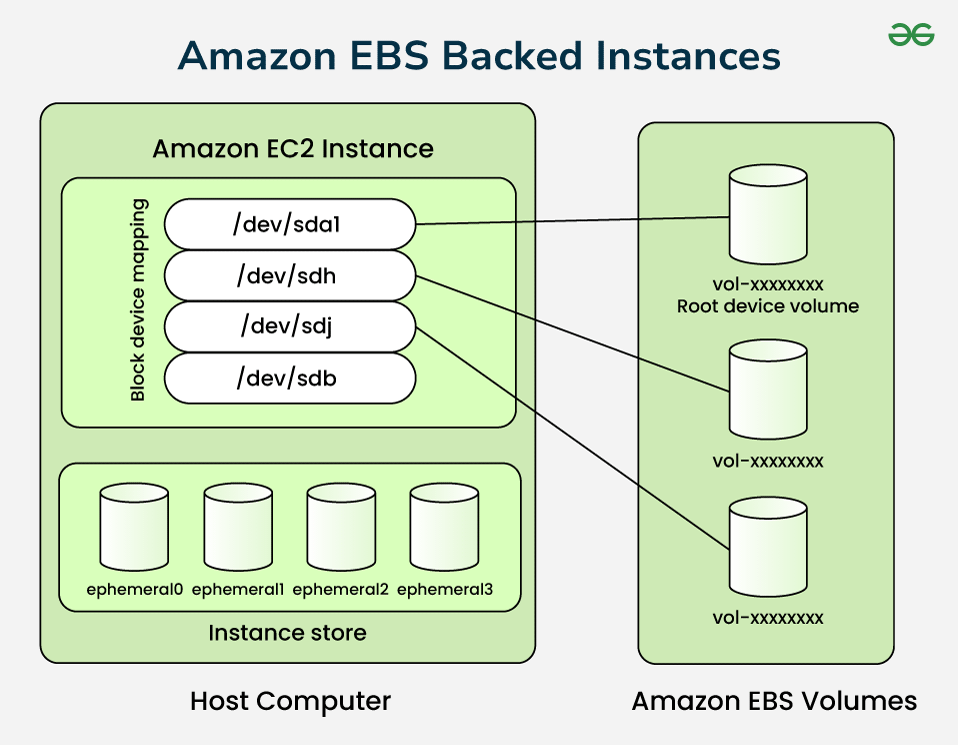
Amazon Elastic Block Store (EBS) provides persistent block storage for Amazon EC2 instances. It is widely used for operating system disks, application data, databases, logs and other workloads that require block-level storage.
EBS is reliable and flexible, but storage-related problems can still cause serious application issues. A full filesystem, insufficient IOPS, high latency, low throughput, incorrect volume configuration or filesystem problems can result in slow applications and service failures.
This guide explains how to troubleshoot common EBS problems and optimize volume performance for production workloads.
Understanding the EC2 and EBS Relationship
An EBS volume is attached to an EC2 instance and appears to the operating system as a block device.
                 AWS
                  |
                  v
             EC2 Instance
                  |
             EBS Volume
                  |
        +---------+---------+
        |                   |
     Filesystem          Application
        |                   |
        +---------+---------+
                  |
                Data
There are several layers that can cause storage problems:
- AWS EBS volume configuration.
- EC2 instance storage limits.
- Operating system block device.
- Filesystem configuration.
- Application behavior.
- Database workload.
Common EBS Problems
The most common storage-related problems include:
- Disk space is full.
- EBS volume is too small.
- High disk latency.
- Insufficient IOPS.
- Insufficient throughput.
- High queue depth.
- Filesystem was not expanded after increasing the volume.
- Incorrect filesystem type or mount configuration.
- Application is generating excessive disk I/O.
- EC2 instance storage limits are affecting performance.
1. Check Disk Space First
When an application reports storage errors, the first thing to check on a Linux EC2 instance is filesystem utilization.
df -hExample output:
Filesystem      Size  Used Avail Use% Mounted on
/dev/nvme0n1p1   30G   29G  1.0G  97% /
A filesystem close to 100% utilization can cause applications to fail when they need to create files, write logs or allocate temporary storage.
2. Find What Is Consuming Disk Space
If the filesystem is almost full, identify which directories are consuming the space.
sudo du -xh --max-depth=1 / | sort -hYou can then investigate large directories individually.
sudo du -xh --max-depth=1 /var | sort -hCommon causes include:
- Application logs.
- System logs.
- Docker images and containers.
- Database files.
- Temporary files.
- Backup files.
- Core dumps.
3. Check Inodes
A filesystem can run out of inodes even when free disk space remains.
df -iIf inode usage reaches 100%, the system may not be able to create new files.
This can happen when applications generate huge numbers of small files.
4. Check the EBS Device
Use lsblk to understand the block devices and partitions attached to the EC2 instance.
lsblkExample:
NAME        SIZE TYPE MOUNTPOINT
nvme0n1      50G disk
└─nvme0n1p1  20G part /
This example shows an important situation: the EBS volume is 50 GB, but the partition is only 20 GB.
Increasing an EBS volume does not automatically mean that the operating system filesystem has expanded.
5. Expand the Filesystem After Increasing EBS Size
One of the most common EBS mistakes is increasing the volume size but forgetting to expand the partition or filesystem.
EBS Volume
50 GB
   |
   v
Partition
20 GB
   |
   v
Filesystem
20 GB
After increasing the EBS volume, verify the device and partition layout.
lsblkFor filesystems such as XFS, an expansion can typically be performed using the appropriate filesystem tools.
sudo xfs_growfs /For an ext4 filesystem, the appropriate command is commonly:
sudo resize2fs /dev/nvme0n1p1Always confirm the actual device, partition and filesystem type before running filesystem modification commands.
6. Check the Filesystem Type
Before resizing or troubleshooting a filesystem, identify its type.
df -TCommon Linux filesystem types include:
- XFS
- ext4
- ext3
The correct expansion and maintenance command depends on the filesystem.
7. Check Disk I/O
If disk space is available but the application is slow, investigate I/O performance.
A useful Linux command is:
iostat -xz 1
If iostat is not installed, install the appropriate system package for your Linux distribution.
Look at metrics such as:
- Utilization.
- Read/write IOPS.
- Read/write throughput.
- Average request size.
- I/O wait.
- Queue behavior.
8. Understand IOPS
IOPS means Input/Output Operations Per Second.
A workload performing many small reads and writes can be IOPS-intensive.
Application
     |
     +-- Read
     +-- Write
     +-- Read
     +-- Write
     +-- Read
     |
     v
   EBS
Database workloads are a common example where IOPS can become an important performance consideration.
9. Understand EBS Throughput
Throughput measures how much data can be transferred over time, typically expressed in MB/s.
A workload processing large sequential files may require high throughput even if its IOPS requirement is relatively modest.
Large File
    |
    v
Sequential Read
    |
    v
High Throughput Requirement
Therefore, increasing IOPS alone may not solve a throughput-bound workload.
10. IOPS vs Throughput
| Workload | Important Metric |
|---|---|
| Small random database operations | IOPS and latency |
| Large sequential file processing | Throughput |
| Log-heavy applications | Throughput and latency |
| High-frequency transactional workloads | IOPS and latency |
11. Understand EBS Volume Types
AWS provides different EBS volume types for different workload requirements.
Common general-purpose options include:
- gp3 — general-purpose SSD with independently configurable performance characteristics.
- gp2 — older general-purpose SSD design where performance is tied more closely to volume size.
Provisioned IOPS SSD options are designed for workloads with more demanding and predictable I/O requirements.
HDD-backed options are designed for workloads where throughput-oriented storage characteristics are more appropriate.
Always verify current AWS pricing, limits and feature availability before selecting a volume type for a new production workload.
12. Why gp3 Is Often Considered for General-Purpose Workloads
One important characteristic of gp3 is that storage capacity, IOPS and throughput can be configured more independently than with gp2.
This can be useful when an application needs more performance without simply increasing storage capacity.
Application Requirement
        |
        +---- Capacity
        |
        +---- IOPS
        |
        +---- Throughput
        |
        +---- Latency
        |
        v
   Select EBS Configuration
13. Check CloudWatch EBS Metrics
CloudWatch is an important part of EBS monitoring.
Useful EBS metrics include:
- VolumeReadOps
- VolumeWriteOps
- VolumeReadBytes
- VolumeWriteBytes
- VolumeQueueLength
- VolumeIdleTime
- VolumeThroughputPercentage
- VolumeConsumedReadWriteOps
The exact metrics available depend on the EBS volume type and configuration.
14. High Volume Queue Length
A growing queue can indicate that I/O requests are waiting to be processed.
Application
    |
    | I/O requests
    v
+----------------+
| EBS I/O Queue  |
| 1              |
| 2              |
| 3              |
| 4              |
| 5              |
+----------------+
        |
        v
     EBS Volume
A consistently high queue should be investigated together with latency, IOPS, throughput and application behavior.
15. Check EC2 Instance EBS Limits
EBS performance is not determined by the volume alone. The EC2 instance type can also impose storage bandwidth and I/O limits.
This creates an important troubleshooting scenario:
High-performance EBS
        |
        v
EC2 Instance Limit
        |
        v
Performance Bottleneck
If the volume is capable of higher performance but the EC2 instance cannot deliver it, changing the EBS volume alone may not solve the problem.
16. Check CPU I/O Wait
Linux systems can show significant CPU time waiting for storage operations.
topYou can also use:
vmstat 1High I/O wait combined with storage latency or queueing can indicate that disk operations are affecting application performance.
17. Check for Disk-Hungry Processes
Sometimes the EBS volume is not the problem. A particular process may simply be generating excessive I/O.
sudo iotopLook for processes performing unusually high read or write activity.
Common examples include:
- Databases.
- Log processing applications.
- Backup jobs.
- File synchronization tools.
- Container workloads.
- Large data-processing jobs.
18. Check Log Files
A rapidly growing log file can unexpectedly consume an entire EBS volume.
sudo du -sh /var/log/*Check for unusually large files:
sudo find /var/log -type f -size +500M -exec ls -lh {} \;Implement appropriate log rotation and centralized logging rather than allowing application logs to grow indefinitely.
19. Deleted Files Can Still Consume Disk Space
Linux can continue using disk space for a deleted file if a running process still has the file open.
Check for deleted files held open by processes:
sudo lsof +L1
This can explain situations where df shows high disk usage but normal directory inspection does not reveal where the space is being used.
20. EBS Volume Is Full: Immediate Response
If production storage is critically full, prioritize restoring available capacity safely.
- Confirm filesystem usage with
df -h. - Check inode usage with
df -i. - Identify large directories and files.
- Check logs and temporary files.
- Check deleted files held open by processes.
- Increase EBS capacity if required.
- Expand the partition and filesystem when necessary.
- Investigate why the disk filled up.
21. Monitor Disk Capacity Proactively
Do not wait until a production filesystem reaches 100% utilization.
Create monitoring and alerting for filesystem usage and other relevant storage metrics.
Disk Usage
    |
    +---- 70%  -> Monitor
    |
    +---- 80%  -> Investigate
    |
    +---- 90%  -> Take Action
    |
    +---- 100% -> Service Risk
Alert thresholds should be based on workload behavior and the amount of time required to safely increase capacity.
22. EBS Snapshots
EBS snapshots provide a way to create point-in-time backups of EBS volumes.
A basic operational workflow can look like:
EBS Volume
     |
     v
Snapshot
     |
     v
Backup / Recovery
Snapshots should be part of a broader backup strategy. Do not assume that having snapshots alone automatically satisfies all recovery requirements.
23. Test Restore Procedures
A backup that has never been restored is not enough to prove that your recovery process works.
Periodically test:
- Snapshot availability.
- Volume creation from snapshots.
- Filesystem mounting.
- Application data recovery.
- Database recovery.
- Recovery time.
24. Optimize EBS Performance Based on the Workload
Avoid choosing storage configuration based only on volume size.
Start by measuring:
- Required capacity.
- Read IOPS.
- Write IOPS.
- Read throughput.
- Write throughput.
- Latency.
- Peak workload.
- Growth rate.
Then select an EBS configuration that matches the application's actual requirements.
25. Database Workloads Need Special Attention
Databases can generate significant random I/O and are often sensitive to storage latency.
When troubleshooting database performance, inspect both the database and EBS layers.
Application
     |
     v
Database
     |
     +---- Queries
     +---- Buffer Cache
     +---- Connections
     |
     v
Filesystem
     |
     v
EBS
     |
     v
EC2 Storage Limits
Increasing EBS performance will not fix an inefficient query, missing database index or application-level bottleneck.
26. Check Mount Configuration
If a volume disappears after reboot, verify the mount configuration.
cat /etc/fstabUse stable identifiers such as UUIDs where appropriate rather than relying on device names that may not always be consistent across environments.
Before changing /etc/fstab, validate the configuration carefully because an incorrect entry can affect system boot.
27. Check Mounted Filesystems
findmntThis command provides a useful overview of mounted filesystems and their relationships.
You can also use:
mount28. Common EBS Troubleshooting Workflow
Storage Problem
      |
      v
Check df -h
      |
      +---- Disk Full
      |       |
      |       v
      |   Find Large Files
      |
      +---- Disk OK
              |
              v
        Check iostat
              |
              v
        Check CloudWatch
              |
              v
       Check IOPS / Throughput
              |
              v
       Check Queue / Latency
              |
              v
      Check EC2 EBS Limits
              |
              v
       Check Application
29. Useful Linux Commands
# Filesystem usage
df -h

# Inode usage
df -i

# Block devices
lsblk

# Filesystem type
df -T

# Disk usage by directory
sudo du -xh --max-depth=1 / | sort -h

# Disk I/O statistics
iostat -xz 1

# System statistics
vmstat 1

# Open files
sudo lsof

# Deleted files still held open
sudo lsof +L1

# Mount information
findmnt

# Check mounted filesystems
mount

# Check active disk-heavy processes
sudo iotop
30. Production EBS Optimization Checklist
- Choose an EBS volume type based on the workload.
- Measure actual IOPS requirements.
- Measure actual throughput requirements.
- Monitor storage latency.
- Monitor volume queue behavior.
- Monitor filesystem utilization.
- Monitor inode utilization.
- Check EC2 instance EBS limits.
- Implement log rotation.
- Use CloudWatch monitoring and alarms.
- Keep backups and snapshots according to your recovery requirements.
- Regularly test restore procedures.
- Expand the filesystem after increasing volume capacity when required.
- Investigate application-level I/O before simply increasing storage performance.
- Review storage performance after major workload changes.
Final Thoughts
EBS troubleshooting should not start with simply increasing the disk size or changing the volume type. First identify whether the problem is capacity, IOPS, throughput, latency, filesystem configuration, EC2 instance limits or application behavior.
The most useful troubleshooting approach is to work through the storage stack:
Application
    ↓
Filesystem
    ↓
Partition
    ↓
Block Device
    ↓
EBS Volume
    ↓
EC2 Instance Limits
    ↓
CloudWatch Metrics
Once the bottleneck is identified, you can choose the appropriate solution: increase capacity, modify EBS performance, optimize the filesystem, change the EC2 instance, reduce unnecessary I/O or fix the application generating the workload.
The goal is not simply to provision more storage. The goal is to build a storage architecture that provides the required capacity, performance, reliability and recoverability for the workload.