AWS EC2 Cost Optimization: 15 Ways to Reduce Your Monthly Cloud Bill
Learn 15 practical ways to reduce AWS EC2 costs, including rightsizing instances, using Graviton, Savings Plans, Spot Instances, EBS optimization, Auto Scaling, and identifying unused resources.
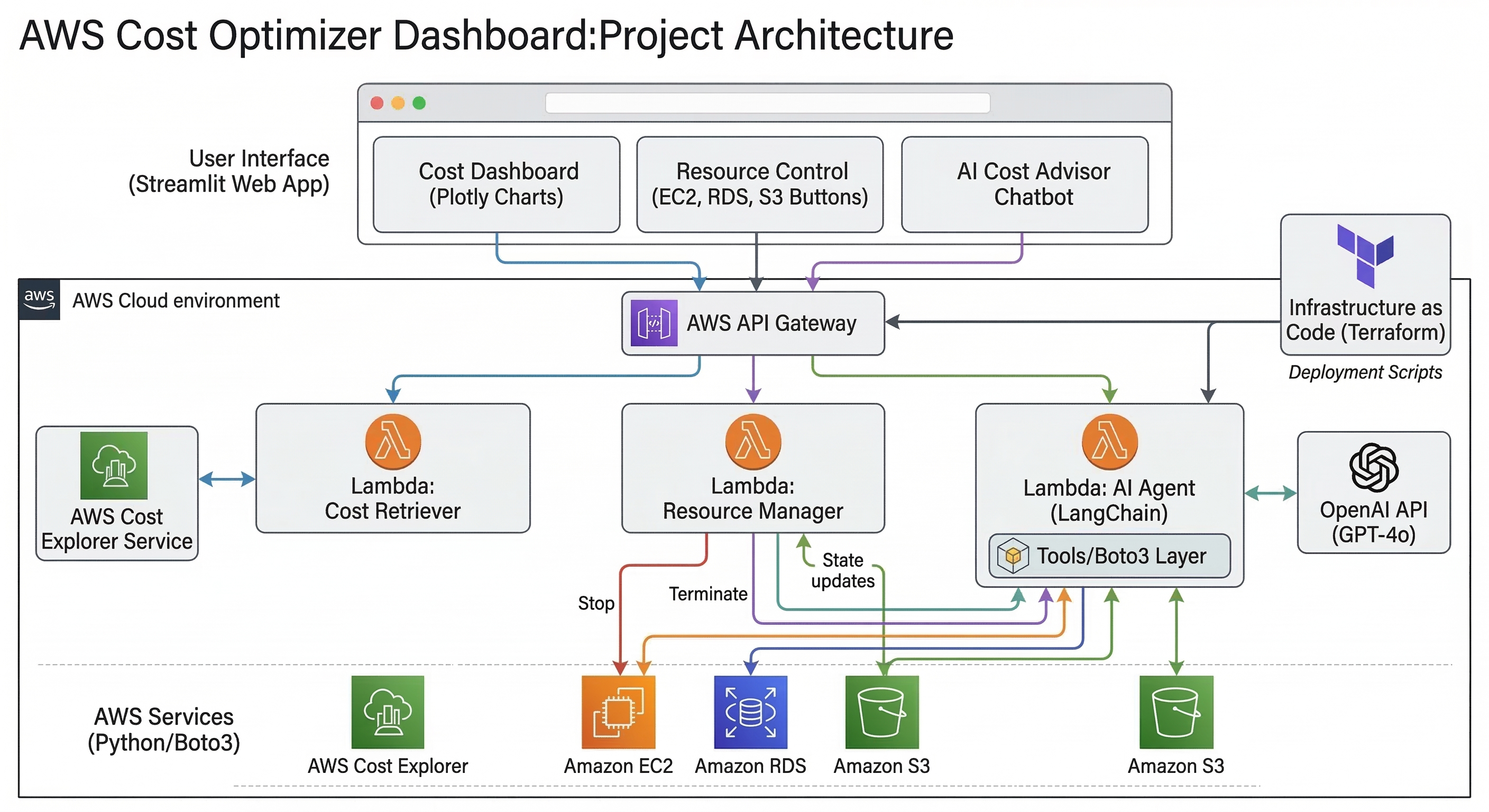
AWS EC2 is one of the most widely used services for running applications, APIs, websites, databases, CI/CD runners and enterprise workloads in the cloud. However, an EC2 environment can become expensive very quickly when instances, storage, networking and other resources are not actively managed.
The good news is that you do not always need to redesign your entire infrastructure to reduce your AWS bill. In many environments, significant savings can come from simple changes such as rightsizing instances, removing unused resources, scheduling non-production workloads and choosing the right pricing model.
In this guide, we will cover 15 practical AWS EC2 cost optimization techniques that DevOps engineers and cloud administrators can use to control their monthly cloud spending.
1. Right-Size Your EC2 Instances
One of the most common reasons for unnecessary EC2 spending is over-provisioning.
For example, an application may be running on a large instance with 8 vCPUs and 32 GiB of memory while consistently using only a small percentage of those resources.
Before changing an instance type, analyze CPU, memory, network and disk performance over a meaningful period rather than looking at a single moment in time.
AWS Compute Optimizer can help identify potential rightsizing opportunities based on workload utilization.
A typical optimization process looks like:
- Monitor the workload.
- Identify consistently underutilized instances.
- Review recommended instance types.
- Test the smaller instance.
- Monitor performance after the change.
2. Stop EC2 Instances When They Are Not Needed
Development, testing and staging environments often run 24 hours a day even though engineers only use them during working hours.
If an instance does not need to be available continuously, stopping it outside business hours can reduce compute costs.
For example, a development environment used for 10 hours per weekday does not necessarily need to run throughout the entire night and weekend.
You can use AWS automation to start and stop instances according to a schedule.
aws ec2 describe-instances \
  --filters "Name=tag:Environment,Values=dev"
Use tags such as Environment=dev or Schedule=business-hours to make automated scheduling easier.
3. Use Auto Scaling
Running a fixed number of EC2 instances regardless of traffic can result in unnecessary spending.
EC2 Auto Scaling allows the infrastructure to automatically adjust capacity based on workload requirements.
Instead of running 10 instances all the time, an application might run fewer instances during periods of low demand and scale out when traffic increases.
A basic architecture can look like:
Users
  |
Load Balancer
  |
Auto Scaling Group
  |
+---------+---------+
| EC2     | EC2     |
+---------+---------+
      |
   Scale Out
      |
+---------+
| EC2     |
+---------+
4. Choose the Right EC2 Instance Family
AWS provides different EC2 instance families for different workload characteristics.
- General purpose: balanced CPU, memory and networking.
- Compute optimized: CPU-intensive workloads.
- Memory optimized: memory-intensive applications.
- Storage optimized: workloads requiring high local storage performance.
- Accelerated computing: workloads requiring GPUs or other accelerators.
Choosing an instance family based on actual workload requirements can prevent you from paying for resources your application does not use.
5. Consider AWS Graviton Instances
AWS Graviton processors are designed by AWS and use Arm-based architecture. Compatible workloads can often achieve a better price-performance profile compared with equivalent x86-based options.
Graviton is particularly worth evaluating for Linux workloads, containerized applications, web servers and other software that supports Arm64.
Before migrating, verify that your operating system, application binaries, libraries, container images and third-party dependencies support the target architecture.
6. Use Savings Plans for Predictable Usage
If your organization has predictable compute usage, AWS Savings Plans can provide lower prices in exchange for committing to a consistent amount of compute usage over a selected term.
Savings Plans should be considered for workloads that are expected to run consistently rather than short-lived experimental workloads.
Before purchasing a commitment, analyze historical usage and make sure the committed amount matches your expected baseline.
7. Use Spot Instances for Suitable Workloads
Amazon EC2 Spot Instances use spare AWS compute capacity and can provide significant discounts compared with On-Demand pricing.
The trade-off is that Spot capacity can be interrupted when AWS needs the capacity back.
Spot Instances are therefore suitable for fault-tolerant workloads such as:
- Batch processing
- CI/CD runners
- Data processing
- Distributed jobs
- Stateless workloads
- Large-scale test environments
They should generally not be used blindly for workloads that cannot tolerate interruption.
8. Delete Unused EBS Volumes
EC2 cost optimization is not only about compute instances. EBS storage can also create unnecessary costs.
When an EC2 instance is terminated, an EBS volume may remain depending on its configuration.
Periodically review unattached volumes:
aws ec2 describe-volumes \
  --filters Name=status,Values=available
Investigate unattached volumes and delete those that are no longer required.
Do not delete a volume simply because it is unattached. Verify ownership, backups and retention requirements first.
9. Review EBS Volume Types
Different EBS volume types have different performance and pricing characteristics.
If a workload does not require high IOPS or throughput, using an unnecessarily expensive storage configuration can increase the monthly bill.
Review:
- Volume type
- Provisioned IOPS
- Provisioned throughput
- Volume size
- Actual workload performance requirements
10. Remove Unused Elastic IP Addresses
Public IPv4 addresses can create costs when they are allocated but not actively associated with the resources that require them.
Review Elastic IP addresses in every AWS Region and remove addresses that are no longer required.
aws ec2 describe-addressesBe careful when modifying production networking. Verify that an address is not referenced by DNS, security controls, allowlists or application configuration before releasing it.
11. Delete Old Snapshots Carefully
EBS snapshots are useful for backup and recovery, but keeping unnecessary snapshots forever can increase storage costs.
Create a retention policy based on your recovery requirements.
For example:
- Daily backups for short-term recovery
- Weekly backups for medium-term recovery
- Monthly backups for long-term retention
The exact retention period should be based on your organization's recovery requirements rather than an arbitrary number.
12. Monitor Your EC2 Utilization
You cannot optimize what you do not measure.
Amazon CloudWatch provides monitoring capabilities that can help you understand how EC2 instances are being used.
Useful metrics include:
- CPU utilization
- Network traffic
- Disk-related metrics where available
- Status checks
For deeper analysis, combine CloudWatch metrics with AWS Cost Explorer and AWS Compute Optimizer.
13. Use AWS Cost Explorer
AWS Cost Explorer can help identify where your AWS spending is coming from.
Instead of looking only at your total monthly bill, break spending down by:
- Service
- Region
- Instance type
- Usage type
- Tags where available
This can reveal unexpected spending patterns such as a large number of resources running in a development account or increased usage in a specific Region.
14. Use Tags for Cost Allocation
A good tagging strategy makes cloud cost management much easier.
Useful tags can include:
Environment=production
Application=payments
Team=platform
Owner=devops
CostCenter=engineering
Consistent tags allow teams to associate infrastructure spending with applications, environments and organizational units.
Make tagging part of the infrastructure provisioning process instead of relying on engineers to add tags manually later.
15. Review Your AWS Regions
Running resources across multiple AWS Regions can be useful for availability, disaster recovery and latency requirements, but unused resources in secondary Regions can easily be overlooked.
Perform regular inventory checks across all Regions.
aws ec2 describe-instances --region us-east-1
aws ec2 describe-instances --region ap-south-1
Replace the Regions with those used by your organization and review instances, EBS volumes, snapshots, Elastic IP addresses and other related resources.
EC2 Cost Optimization Checklist
Use the following checklist during a monthly or quarterly cloud cost review:
- Check for oversized EC2 instances.
- Review CPU and memory utilization.
- Check development and test environments.
- Stop resources outside required operating hours.
- Review Auto Scaling configurations.
- Evaluate Graviton compatibility.
- Review Savings Plan opportunities.
- Evaluate Spot Instances for fault-tolerant workloads.
- Remove unused EBS volumes.
- Review EBS volume types and sizes.
- Review unused public IPv4 addresses.
- Review old EBS snapshots.
- Analyze Cost Explorer reports.
- Check resource tags.
- Review resources in every AWS Region.
Example: A Simple EC2 Optimization Workflow
A practical cloud cost optimization process can be implemented as a continuous cycle:
Collect Cost Data
       |
       v
Analyze Utilization
       |
       v
Identify Waste
       |
       v
Rightsize / Stop / Delete
       |
       v
Test Performance
       |
       v
Monitor Savings
       |
       v
Repeat
The goal should not simply be to make the AWS bill smaller. The objective is to eliminate unnecessary spending while maintaining the performance, availability and reliability required by the application.
Common EC2 Cost Optimization Mistakes
Only Looking at CPU Usage
Low CPU utilization does not automatically mean an instance should be downsized. Memory, network throughput, disk performance and application latency should also be considered.
Buying Commitments Too Early
Savings Plans can be useful for predictable workloads, but committing before understanding your baseline usage can reduce flexibility.
Using Spot for Everything
Spot Instances are powerful for suitable workloads, but interruption behavior must be considered before moving production workloads to Spot capacity.
Deleting Resources Without Verification
An apparently unused EBS volume, snapshot or Elastic IP may still be required for disaster recovery, security or operational purposes. Always verify ownership and dependencies before deletion.
Final Thoughts
AWS EC2 cost optimization is not a one-time task. Cloud environments change continuously as applications scale, teams deploy new services and infrastructure requirements evolve.
The most effective approach is to combine rightsizing, automation, monitoring, appropriate pricing models and regular resource cleanup.
Start with the highest-impact areas: oversized instances, unused resources, non-production schedules and predictable workloads. Once these areas are under control, continue with storage optimization, tagging, regional analysis and more advanced cost-management practices.
A well-designed cost optimization process can help organizations reduce unnecessary AWS spending without sacrificing application reliability or performance.