Azure Cost Optimization: How to Find and Reduce Wasted Resources
Learn how to identify wasted Azure resources and reduce cloud costs by finding idle VMs, unattached disks, unused public IPs, oversized workloads, unnecessary snapshots and inefficient architectures.
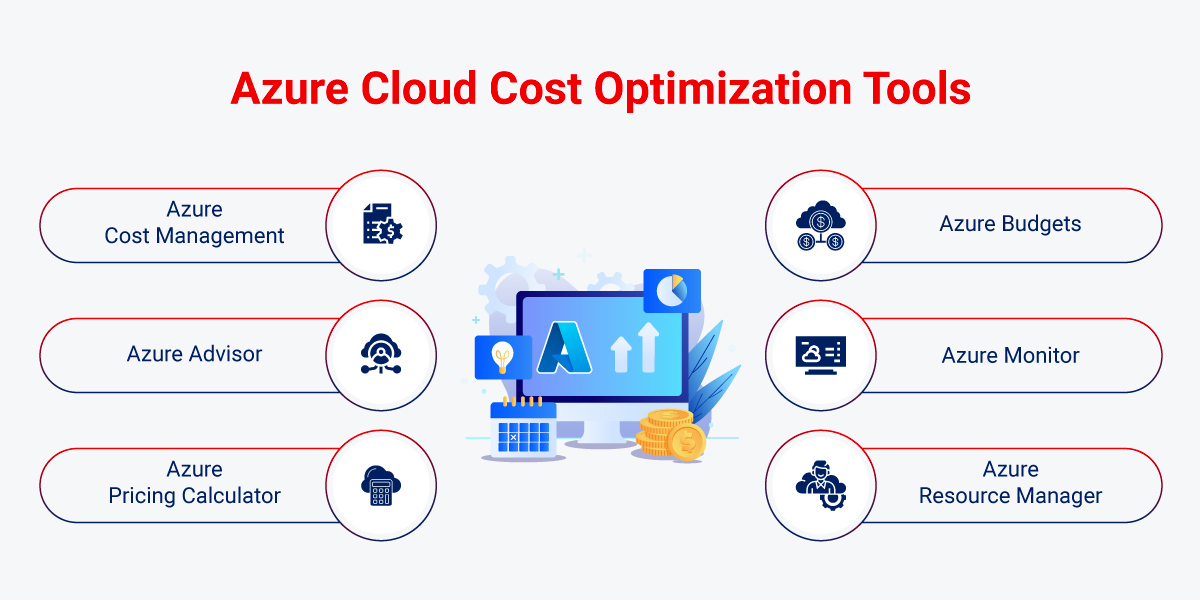
Azure makes it easy to create infrastructure quickly, but that flexibility can also lead to unnecessary cloud spending. Virtual machines may remain idle, disks can become unattached, snapshots can accumulate, and workloads can be provisioned with more capacity than they actually require.
Azure cost optimization is not simply about reducing resources. The goal is to identify resources that provide little or no business value and optimize them without negatively affecting application availability, performance or reliability.
This guide explains practical ways to find wasted Azure resources and reduce unnecessary cloud costs.
What Causes Azure Cloud Waste?
Azure cost waste commonly comes from a combination of infrastructure, operational and architectural problems.
Azure Spending
     |
     +---- Idle VMs
     |
     +---- Oversized VMs
     |
     +---- Unattached Disks
     |
     +---- Old Snapshots
     |
     +---- Unused IPs
     |
     +---- Excessive Storage
     |
     +---- Inefficient Databases
     |
     +---- Poor Autoscaling
     |
     +---- Forgotten Resources
1. Start With Azure Cost Management
The first step is to understand where the money is actually being spent.
Azure Cost Management provides tools for analyzing cloud spending, creating budgets and identifying cost trends.
Start by reviewing costs by:
- Subscription.
- Resource group.
- Service.
- Resource.
- Region.
- Tags.
- Time period.
This gives you a much better picture than looking only at the total monthly Azure bill.
2. Identify the Biggest Cost Drivers
Before optimizing anything, identify the services responsible for the majority of your spending.
Monthly Azure Bill
       |
       +---- Compute
       |
       +---- Storage
       |
       +---- Database
       |
       +---- Networking
       |
       +---- Other Services
Focus first on significant cost categories rather than spending hours optimizing resources that have almost no impact on the total bill.
3. Find Idle Virtual Machines
Virtual machines are one of the easiest places to discover cloud waste.
Development, testing and temporary environments are particularly likely to contain machines that remain running when nobody is using them.
Look for VMs with consistently low:
- CPU utilization.
- Network activity.
- Disk activity.
- Application usage.
Example
VM: dev-server-01

CPU:
2% average

Network:
Very low

Application:
No active users

Status:
Running 24/7
If the workload does not require continuous availability, consider scheduling it to stop outside working hours or redesigning the environment around the actual usage pattern.
4. Stop Development VMs Outside Working Hours
Development and test environments often do not need to run continuously.
Monday - Friday
09:00 -> Start
19:00 -> Stop

Weekend
Stopped
Automated schedules can significantly reduce compute usage for workloads that are not required outside business hours.
Before implementing an automatic shutdown policy, verify that applications, dependencies and scheduled processes can safely tolerate the VM being stopped.
5. Find Oversized Virtual Machines
Another common problem is allocating significantly more CPU or memory than the workload actually requires.
Current VM
8 vCPU
32 GB RAM

Actual Workload
1 vCPU average
6 GB RAM average
In this situation, the VM may be a candidate for rightsizing.
Do not resize based on a single quiet day. Review workload behavior over an appropriate period, including peak usage.
6. Rightsize Based on Real Workload Data
Rightsizing should consider:
- Average CPU usage.
- Peak CPU usage.
- Memory requirements.
- Disk performance.
- Network throughput.
- Application response time.
- Business-critical workload periods.
A VM that appears idle most of the time may still need additional capacity during predictable peak periods.
7. Find Unattached Managed Disks
Disks can remain behind after a VM is deleted or migrated.
Old VM
  |
  X Deleted

Managed Disk
  |
  v
Still Exists
  |
  v
Still Generates Cost
Regularly identify disks that are no longer attached to an active workload.
Before deleting an unattached disk, confirm that it is not required for recovery, migration or another operational process.
8. Review Old Snapshots
Snapshots can accumulate over time, especially when administrators create manual backups during troubleshooting or maintenance activities.
Review:
- Snapshot age.
- Owner.
- Purpose.
- Retention requirement.
- Whether a newer recovery mechanism exists.
Do not delete snapshots simply because they are old. First confirm that they are not part of the recovery strategy.
9. Remove Unused Public IP Addresses
Public IP resources can remain after workloads are removed.
Review public IP addresses that are no longer associated with resources or required by the architecture.
Public IP
    |
    +---- Attached to active resource
    |
    +---- Unused
             |
             v
        Review / Remove
10. Audit Unused Network Resources
Cost optimization should include networking resources, not just VMs.
Review resources such as:
- Public IP addresses.
- Load balancers.
- Network interfaces.
- VPN-related resources.
- Gateways.
- Unused networking components.
Be especially careful with network components that are part of production or disaster-recovery architectures.
11. Review Storage Growth
Storage costs can grow quietly because old data often remains after the original application requirement has disappeared.
Review:
- Blob containers.
- File shares.
- Old logs.
- Backup data.
- Snapshots.
- Archive candidates.
12. Implement Storage Lifecycle Policies
Not every object needs to remain in the same storage tier forever.
Hot Data
   |
   | After inactivity
   v
Cool Data
   |
   | After longer inactivity
   v
Archive
   |
   v
Retention / Deletion
Azure Storage lifecycle management can automate movement or deletion of eligible data according to configured policies.
Retention policies should always reflect business, legal and compliance requirements.
13. Find Duplicate Data
Duplicate datasets can increase storage costs without providing proportional value.
Common examples include:
- Multiple copies of old application exports.
- Repeated manual backups.
- Temporary migration files.
- Duplicate log archives.
- Old deployment artifacts.
Before deleting duplicates, verify retention and recovery requirements.
14. Optimize Database Resources
Azure database services can become significant cost drivers when provisioned above actual workload requirements.
Review:
- Compute utilization.
- Database performance requirements.
- Storage consumption.
- IOPS requirements.
- High-availability configuration.
- Development and test environments.
Production databases should not be downsized purely to reduce cost without validating performance and availability requirements.
15. Use Autoscaling Where Appropriate
Applications with variable demand may not need maximum capacity all the time.
Low Traffic
   |
   v
Fewer Instances

High Traffic
   |
   v
More Instances
Autoscaling can help align compute capacity with workload demand.
However, autoscaling should be tested carefully because poorly configured scaling policies can create performance problems or unexpected costs.
16. Review Azure App Service Plans
App Service costs can be influenced by the pricing tier and the number of instances running in the plan.
Review:
- Application usage.
- Instance count.
- Plan size.
- Scaling requirements.
- Development versus production workloads.
17. Avoid Overprovisioning Kubernetes Clusters
AKS environments can accumulate unused capacity when node pools are sized for peak demand but remain underutilized most of the time.
Review:
- Node utilization.
- Pod resource requests.
- Pod resource limits.
- Autoscaling configuration.
- Node pool sizing.
- System versus workload capacity.
18. Check Kubernetes Resource Requests
Kubernetes scheduling depends heavily on resource requests. Incorrectly large requests can cause the cluster to provision more nodes than necessary.
Application A
CPU request: 2 cores
Memory request: 4 GB

Actual usage:
CPU: 0.2 core
Memory: 500 MB
Review workload resource requirements using real metrics rather than arbitrary values.
19. Review Reservations and Savings Options
Workloads with predictable and sustained usage may have options for reducing effective compute costs through Azure purchasing models designed for committed usage.
Before committing, analyze:
- Historical usage.
- Expected workload duration.
- Architecture changes.
- Growth expectations.
- Flexibility requirements.
Do not purchase long-term commitments simply because the discounted rate looks attractive. The commitment should match a workload that the organization expects to keep using.
20. Use Azure Advisor
Azure Advisor provides recommendations across areas including cost, performance, reliability and security.
Cost recommendations can help identify potential optimization opportunities.
Advisor recommendations should be validated against application requirements before changes are implemented.
21. Create Budgets and Alerts
Cost optimization works better when unexpected spending is detected early.
Monthly Budget
      |
      v
Actual Spend
      |
      v
Threshold Reached
      |
      v
Alert
      |
      v
Investigation
Configure budgets and alerts for important subscriptions, resource groups or workloads where appropriate.
22. Use Tags for Cost Allocation
Tags can make it easier to understand which team, application or environment is responsible for a resource.
Example:
Environment = Production
Application = Payments
Owner = PlatformTeam
CostCenter = Engineering
A consistent tagging strategy improves cost visibility and accountability.
23. Separate Production and Non-Production Costs
Production and development workloads have different availability and cost requirements.
Azure Subscription
       |
       +---- Production
       |
       +---- Development
       |
       +---- Testing
       |
       +---- Staging
Separating environments makes it easier to apply different cost policies and identify where unnecessary spending is occurring.
24. Find Resources With No Owner
An easy way to discover wasted infrastructure is to identify resources nobody claims responsibility for.
Useful ownership metadata includes:
- Application owner.
- Technical owner.
- Environment.
- Cost center.
- Business unit.
If nobody knows why a resource exists, investigate it before allowing it to continue running indefinitely.
25. Review Resources in Old Resource Groups
Resource groups associated with completed projects are often a source of forgotten resources.
Project Completed
      |
      v
Application Deleted
      |
      +---- Disk remains
      |
      +---- IP remains
      |
      +---- Snapshot remains
      |
      +---- Storage remains
After a project is completed, perform a resource cleanup review rather than assuming everything was deleted automatically.
26. Avoid Blind Deletion
Cost optimization does not mean deleting every resource that appears unused.
Before deleting anything, check:
- Is it production infrastructure?
- Is it part of disaster recovery?
- Is it required for backup retention?
- Is it used by automation?
- Does another application depend on it?
- Is there a compliance requirement?
27. Create a Resource Cleanup Process
Cost optimization should become an ongoing operational process rather than a one-time cleanup exercise.
Discover
   |
   v
Analyze
   |
   v
Validate
   |
   v
Optimize
   |
   v
Monitor
   |
   v
Repeat
28. Build a Monthly Cost Review
A monthly review can identify changes before they become expensive surprises.
Review:
- Total Azure spending.
- Largest cost increases.
- Idle compute.
- Storage growth.
- Network costs.
- Database costs.
- Unused resources.
- New resources created during the month.
29. Watch for Unexpected Network Costs
Cloud costs are not limited to compute and storage. Network architecture can also influence spending.
Review workloads with significant:
- Data transfer.
- Cross-region traffic.
- Cross-zone traffic.
- Internet egress.
- Network security appliance processing.
Do not redesign a production network solely for cost without considering latency, availability and security requirements.
30. Measure Cost Per Application
Total cloud spending is useful, but application-level cost can provide much more actionable information.
Azure
 |
 +---- Payments App
 |       |
 |       +---- Compute
 |       +---- Database
 |       +---- Storage
 |       +---- Network
 |
 +---- CRM App
 |
 +---- Internal Tools
With consistent tagging and resource organization, teams can understand the infrastructure cost associated with individual applications.
Azure Cost Optimization Workflow
Step 1
Analyze Azure Cost Management
        |
        v
Step 2
Find Biggest Cost Drivers
        |
        v
Step 3
Identify Idle Resources
        |
        v
Step 4
Rightsize Active Resources
        |
        v
Step 5
Optimize Storage
        |
        v
Step 6
Review Networking
        |
        v
Step 7
Optimize Databases / AKS
        |
        v
Step 8
Review Commitments
        |
        v
Step 9
Create Budgets and Alerts
        |
        v
Step 10
Repeat Monthly
Quick Azure Cost Optimization Checklist
| Area | What to Check |
|---|---|
| VMs | Idle, oversized or unnecessary instances |
| Disks | Unattached and oversized disks |
| Snapshots | Old or unnecessary snapshots |
| Public IPs | Unused network resources |
| Storage | Old data, lifecycle policies and duplicate data |
| Databases | Capacity versus actual workload |
| AKS | Node and pod utilization |
| App Service | Plan size and instance count |
| Networking | Data t
Related
Azure Load Balancer vs Application Gateway: Technical ComparisonAzure Load Balancer vs Application Gateway explained with a technical comparison of Layer 4 and Layer 7 load balancing, routing, TLS termination, WAF, health probes, backend pools and common use cases. Read →Azure Storage Security: Common Configuration MistakesLearn how to secure Azure Storage Accounts by avoiding common configuration mistakes involving public access, shared keys, SAS tokens, RBAC, networking, encryption, HTTPS, logging and data protection. Read → |